
AnswerALS Dataset
Once your data access request has been approved and all data use agreements have been signed, you can upload data to your workspace using the Neuromine Data Portal.
Uploading data to your workspace using Neuromine Data Portal output
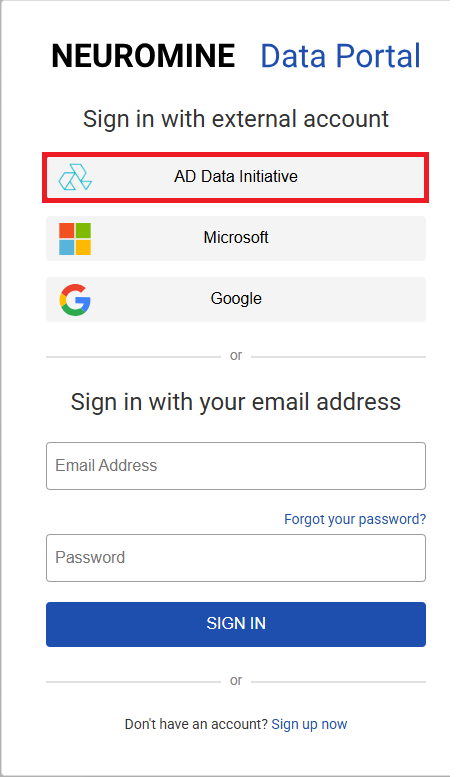
Log in to Neuromine using AD Data Initiative credentials.
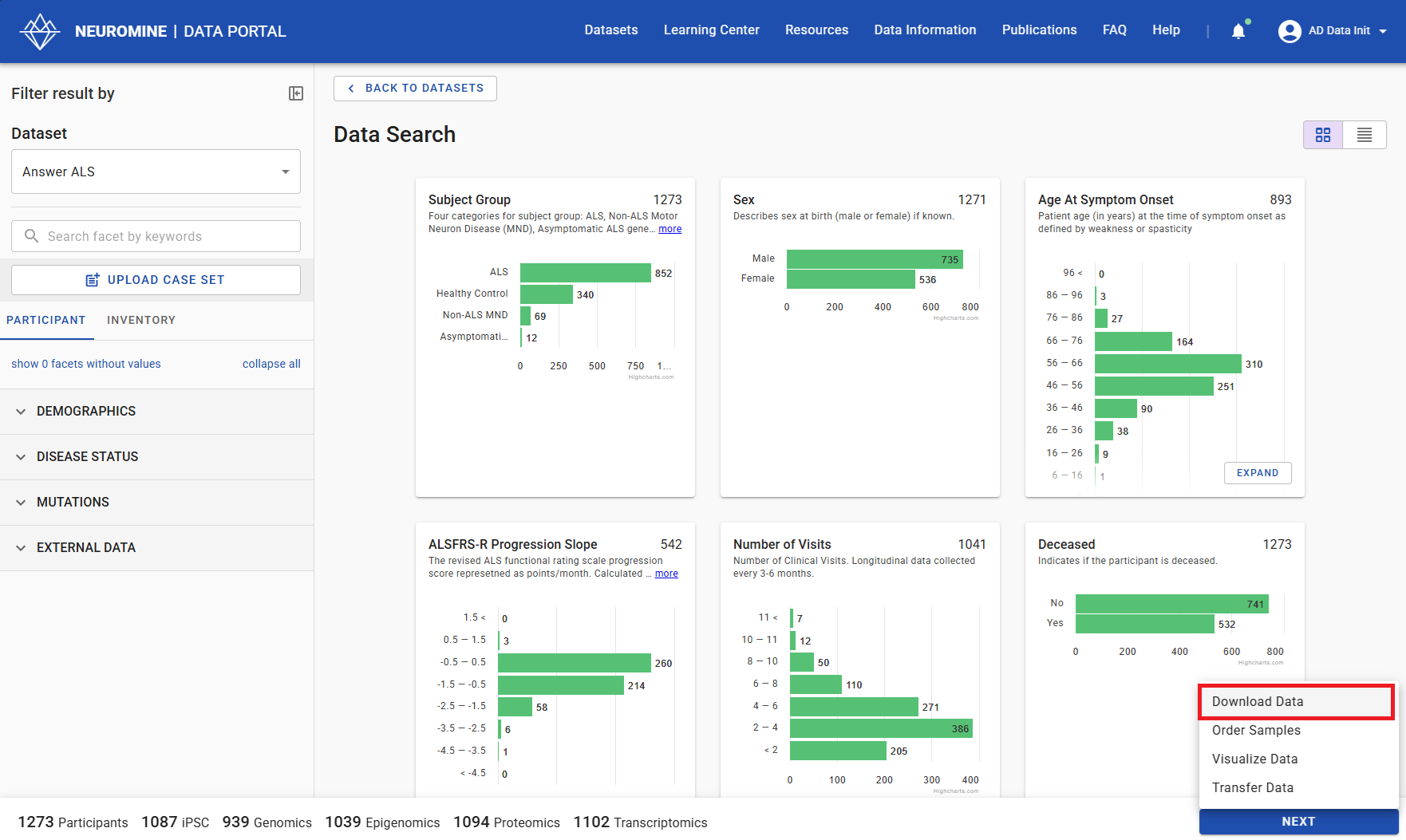
Select the cohort of interest and choose Download Data from the Next menu.
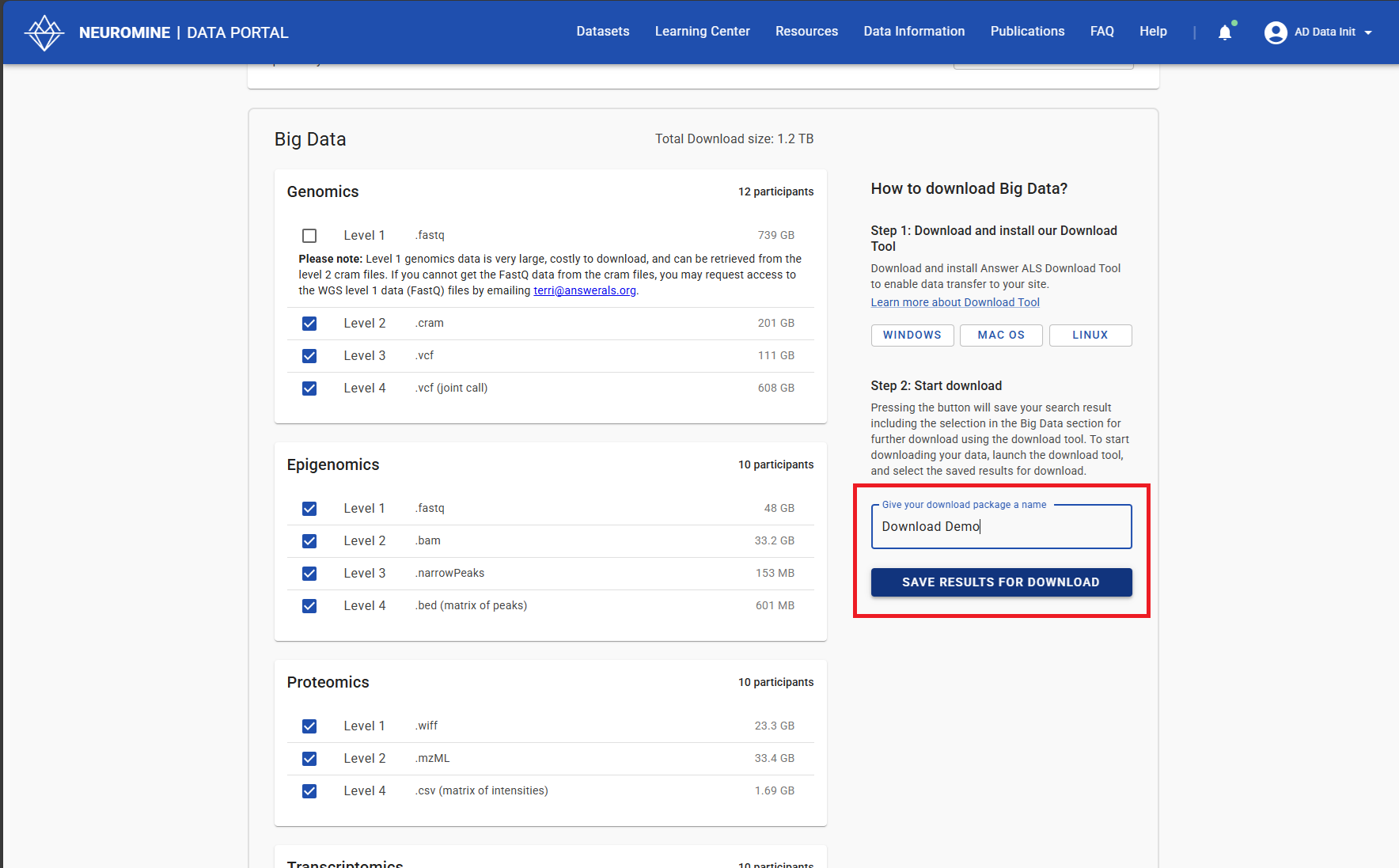
Choose which data files you’d like to download. If Big Data is included, choose the Windows or Linux option for the Download tool and install the tool. Name your download bundle and select Save Results for Download.
Upload the Download tool installer to your workspace.
Run the Download tool from within your workspace VM, following the prompts to download your files.
Once download is successful, your files will be accessible from within your AD Workbench workspace VM.